
Record a lecture without a studio
A lecture recording is slides, a voice and — optionally — your face in a corner. OneTake records the screen at 1080p with the microphone, composites a camera bubble, and gives you a single MP4 to upload.
Start recording → Free · no account · nothing is uploaded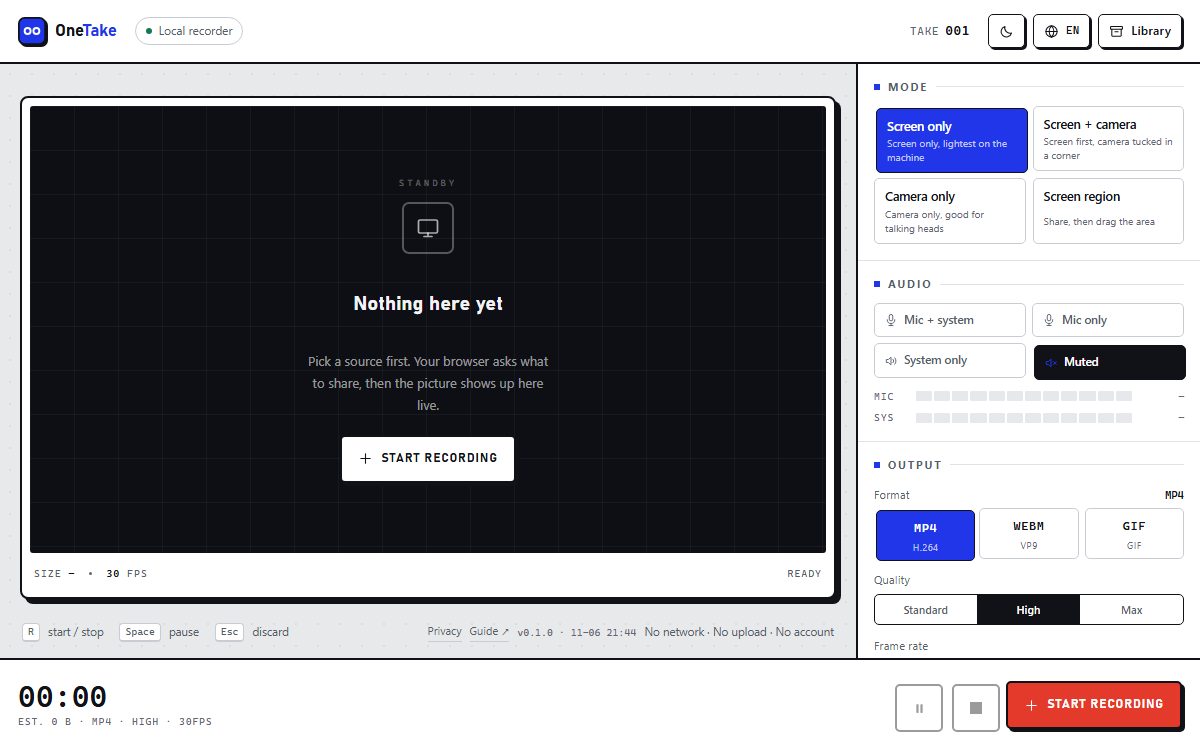
How to do it
- Set 1080p and 30 fpsSlides do not need 60 fps; 1080p keeps the text legible at a reasonable file size.
- Choose “Screen + camera” if you want a face bubblePick a corner and size, or drag the preview to position it.
- Record the slides full-screenUse the countdown to switch into your presentation window.
- Stop and download the MP4Upload it to the LMS, Drive, or send the file directly.
Text stays sharp if you respect the bitrate
Slides are the worst case for a video encoder: flat areas and thin text. Keep quality on “High” or “Max” and record at 1080p rather than upscaling a projector-sized window.
If the slides are mostly static, the file stays small even at a high bitrate — motion is what costs megabytes.
Audio is the part students notice
A slightly soft image is forgiven; a roomy, echoing voice is not. Use a headset mic if you have one, and check the MIC meter reaches the amber range before you start.
System audio is only needed if you play a video during the lecture — otherwise “Mic only” keeps the file simpler.
Frequently asked questions
How long can a lecture be?
There is no artificial limit, but takes are held in memory until you stop, so split anything past an hour into parts.
Can students see my face?
Only if you pick “Screen + camera”; the bubble sits in a corner and can be moved and resized.
What format do LMS platforms want?
MP4 (H.264) — the default here — is accepted by Moodle, Canvas, Google Classroom and most others.
Can I record a slide deck that is on another monitor?
Yes. Share that screen or that presentation window specifically.